
Two-Factor Authentication
Introduction
The data stored in the ADAM database is very sensitive data. To help protect this data, ADAM allows you to protect your account with Two-Factor Authentication (2FA).
Two-factor authentication is used by many banks to ensure that your transactions are genuine: when you initiate a payment or transaction, you are asked to type in a “one-time-PIN” (OTP) or approve the transaction from your phone. The OTP, or the approval from your phone, is known as the “second factor” in the authentication process.
An account protected with Two-Factor Authentication will not let a password on its own get you in — something more is always needed, whether that is the one-time-PIN from your app, one of your recovery codes, or a passkey.
ADAM’s two-factor authentication system works using an Authenticator App that must be installed onto your phone. The Authenticator App will generate the One Time PIN. It is not sent by SMS and it is not linked to any specific phone number. After it has been set up, the app will not require any airtime or data to use.
Warning
From 1 January 2027, two-factor authentication is required for every staff member who uses ADAM. You do not need to wait for that date — you can set it up now, and we would encourage you to. Once the requirement takes effect, ADAM will ask you to set it up the next time you sign in, and you will not be able to use ADAM until you have.
Two-factor authentication is already required for accounts with elevated permissions, whatever your school has chosen.
Supported Authenticator Apps
There are many different Authenticator Apps that you can use. Popular ones include Google Authenticator (by Google LLC), Microsoft Authenticator (by Microsoft Corporation), Twilio Authy Authenticator (previously simply “Authy”, by Twilio), or 1Password (by 1Password).

Google Authenticator

Microsoft Authenticator

Twilio Authy Authenticator

1Password
All of these apps are available for download from your preferred app store.
If your school makes use of Google Workspace, we recommend using the Google Authenticator. If your school makes use of Microsoft 365, we recommend using Microsoft Authenticator.
Adding Two-Factor Authentication to your account
First, download and install an authenticator app from your app store.
You can reach the setup page in two ways. If ADAM is waiting for you to set two-factor authentication up, it takes you there itself the next time you sign in. Otherwise, sign in as normal, click on the Staff tab, and then under the Security Administration heading click on Manage your Two-Factor Authentication.
The setup page asks you to do two things, in order.
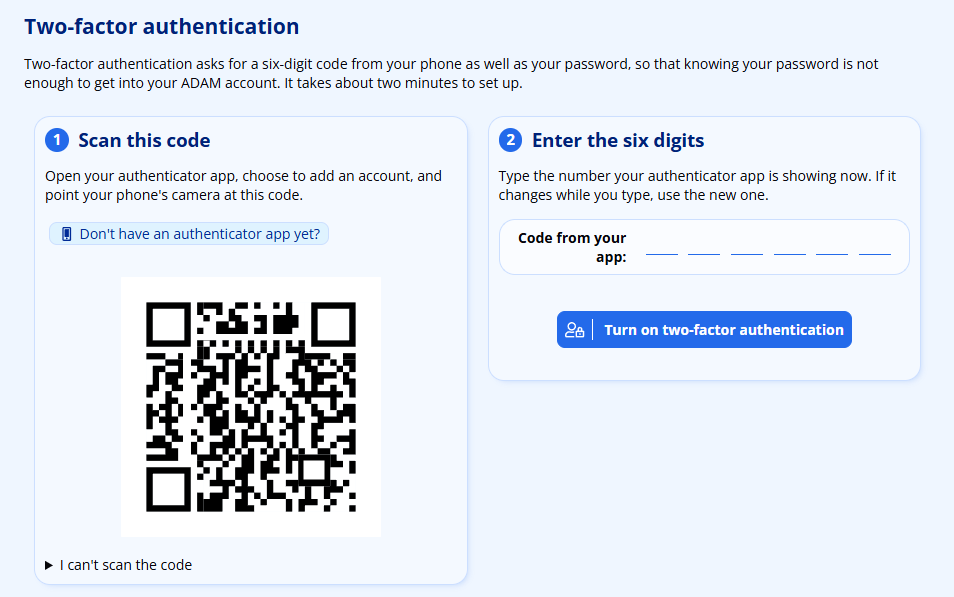
Step 1: Scan this code
ADAM shows a QR code for your app’s camera to read. If your phone cannot scan it — because you are reading this on the phone itself, for instance — open I can’t scan the code underneath it and ADAM shows the same information as a short written secret you can type in by hand instead.
Note
The QR code in the picture above has been deliberately corrupted so that it cannot be scanned. Scan the code on your own screen — every account’s code is different.
Open the authenticator app you installed, and choose its option to add a new account. The app will ask permission to use your camera so that it can scan the code. In the Google Authenticator app, for example, this is the + button at the bottom right of the screen.

An example of three accounts that have been set up for Two-Factor Authentication and how they appear in the Google Authenticator App. If you use a different App, it will look different!
Once the code has been scanned, the app lists the account and shows a six-digit number beneath it. That number changes every thirty seconds.
Step 2: Enter the six digits
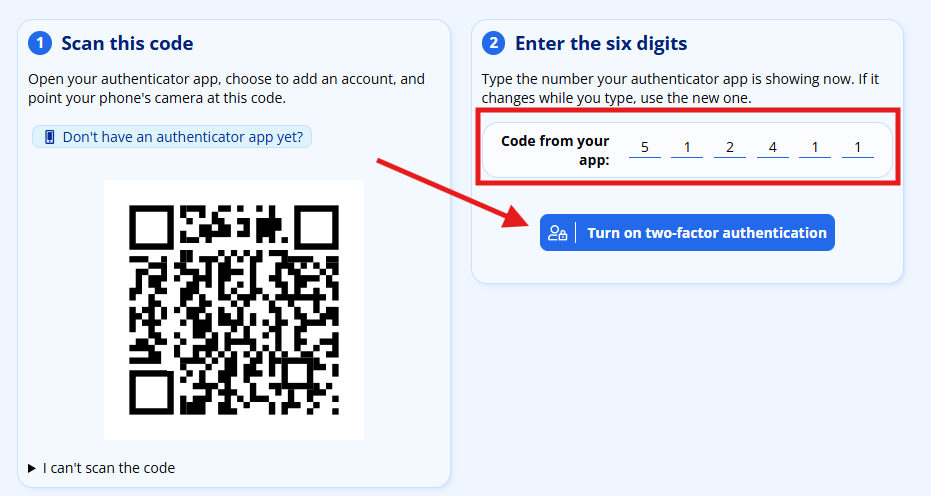
The last step tells ADAM that your app really did save the secret. Type the six digits currently shown in your app into the Code from your app boxes, and click on Turn on two-factor authentication.
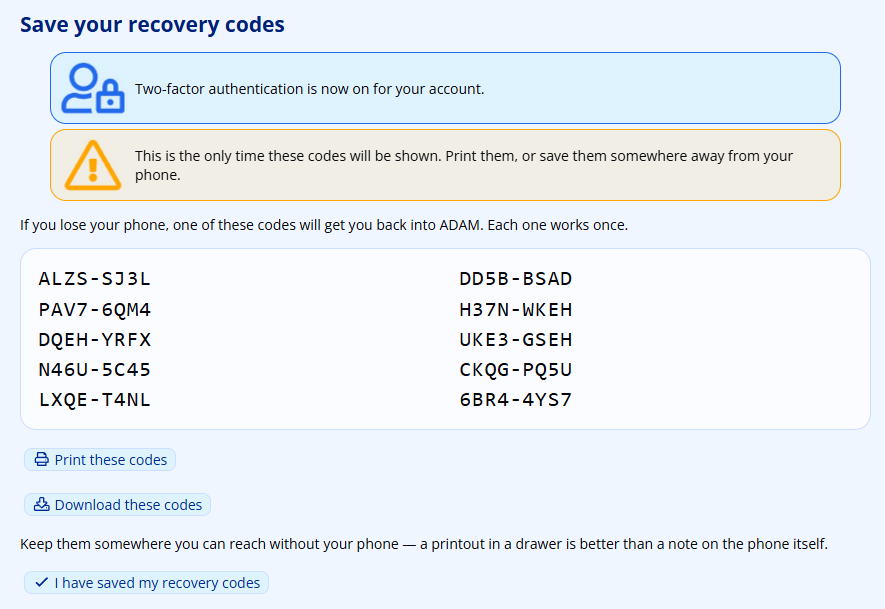
If the digits were correct, ADAM confirms that two-factor authentication is now protecting your account, and shows you your recovery codes. Do not leave that page without saving them — see Recovery codes below.
If ADAM says the code was wrong, the most likely reason is that the six digits changed while you were typing. Try again with the number now showing in your app. If it fails repeatedly, see the frequently asked questions below.
Recovery codes
When you set up two-factor authentication, ADAM gives you ten recovery codes. Each one can be used once, in place of the six digits from your app, to sign in. They are what gets you back into ADAM when your phone is lost, broken, flat, or simply not with you.
A recovery code looks like this:
A3F7-K29P
They contain no digit 0, 1, 8 or 9 — so if you see a rounded character, it is always the letter O, never a zero. Neither capitalisation nor the hyphen matters: ADAM upper-cases the code and strips punctuation before checking it, so a3f7k29p works just as well as A3F7-K29P.
Warning
ADAM shows your recovery codes once, at the moment they are created, and never again. It cannot show them to you later, because it does not keep a readable copy — it stores only enough to check a code you type in. If you lose them, you can generate a fresh set, but the old ones stop working.
Print them, or download them, and keep them somewhere you can reach without your phone. A drawer at home is fine. A note on your desk beside the computer you sign in on is not — anyone who has your password and that note has your account.
Using a recovery code
When ADAM asks for your six-digit code, use the option to sign in with a recovery code instead, and type one in. That code is then used up. Nine remain.
Generating new codes
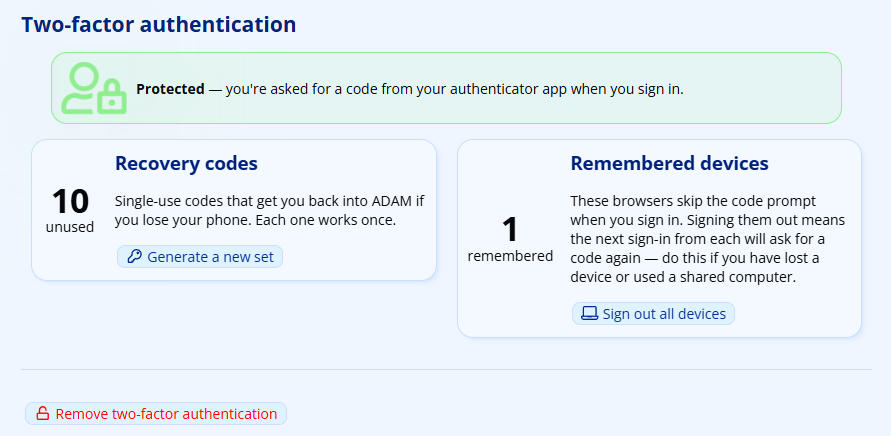
You can replace your codes at any time — if you have used most of them, or if you think someone else has seen them. Click on the Staff tab, then under the Security Administration heading click on Manage your Two-Factor Authentication, and click on Generate a new set in the Recovery codes card — the card is shown under Remembered devices below. The card also tells you how many of your codes are still unused.
ADAM asks for your password and a code from your app first, to be sure it is you. Generating a new set cancels every code in the old set, so make sure you have saved the new ones before you close the page.
Remembered devices
Depending on how your school has set ADAM up, it may not ask for your six-digit code every single time you sign in. It can instead remember the computer you are using, and skip the prompt for a while. Your school’s administrator chooses this — see how often ADAM asks for a code.
Where that is in use, your two-factor authentication page shows a Remembered devices card telling you how many computers are currently trusted to skip the prompt.
Tip
If you have signed in on a computer that is not yours — a shared office machine, a hotel, a friend’s laptop — or if a laptop has been lost or stolen, use Sign out all devices. Every computer remembered for your account is forgotten, and the next time you sign in on any of them you are asked for a code.
Signing devices out does not remove two-factor authentication from your account and does not affect your recovery codes. It only means the code prompt comes back.
You may also see this card show nothing to sign out. That simply means no computer is currently being trusted — either because none has been, or because your school asks for a code at every sign-in.
Removing Two-Factor Authentication
Once you have added two-factor authentication, you can remove 2FA by clicking on the Staff tab, and then under the Security Administration heading clicking on Manage your Two-Factor Authentication. If it is enabled on your account, you will see the following:
Click on the Remove two-factor authentication option at the bottom to begin the process. ADAM opens a page headed Remove two-factor authentication.
You must then enter your ADAM password to confirm that you’d like to remove Two-Factor Authentication from your account:

Once removed, ADAM will show the options to re-enrol your account in the Two-Factor Authentication setup, including a new QR code. If you see the QR code, then your account is no longer protected by Two-Factor Authentication.
Please note that if your account requires Two-Factor Authentication, if you remove it, you will be forced to re-add two factor authentication immediately and will not be able to use ADAM until this is done.
Frequently Asked Questions
ADAM is not sending me the OTP. How do I log in?
ADAM does not send the One-Time PIN (OTP) - it is generated by the Authenticator App on your phone. You need to open the Authenticator App and get the OTP from within the App.
The OTP is generated by the App. It does not use any data and does not require you to have any airtime on your phone, and you don’t need any cell reception.
How do I log in if I don’t have my phone with me?
Use one of your recovery codes. When ADAM asks for the six digits, choose to sign in with a recovery code instead, and type one in. Each code works once.
If you have run out of codes, or never saved them, your ADAM administrator can remove two-factor authentication from your account. You can then sign in with just your password — but if your school requires two-factor authentication, ADAM will ask you to set it up again straight away, and you will need your phone to do that.
If you are your school’s ADAM administrator and you cannot sign in yourself, contact us for support. We will verify who you are before making any change.
I have a new phone or don’t have the App installed anymore. How do I log in?
Sign in with a recovery code, then remove two-factor authentication from your account and set it up again on the new phone. Scanning the QR code on the new phone creates a new secret; the entry in your old app stops working, and you should delete it.
I removed the app because I don’t want to use two factor authentication any more. Now I can’t log in.
Please be aware that the only time that ADAM and your Authenticator App will communicate is when the QR code is first scanned. After that, there is no synchronisation or communication of any kind between ADAM and the Two-Factor Authentication app that is installed on your phone.
Warning
If you remove the app from your phone, or remove the ADAM OTP from within the app, it does not remove Two-Factor Authentication protection from your account. If you remove the code from your app before you remove two-factor authentication from your account, you will no longer be able to log in.
Similarly, if you remove the protection from your account, it does not automatically remove the code from your app.
If you lose your phone, or cannot generate a code for any other reason, sign in with a recovery code. If you have none left, only your ADAM administrator can remove the protection from your account.
I have two ADAM logins and need to scan two different QR codes for the two different accounts. Can I do this?
Yes, most authenticator apps will support multiple accounts. Please be aware that if you scan a second QR Code for the same ADAM server, the Authenticator App may ask you if you want to replace the OTP.
Most authenticator apps will also allow you to rename the OTP entry so that you can differentiate between the two entries in your phone.
I sign in with a passkey. Do I still need two-factor authentication?
Yes. Signing in with a passkey means ADAM does not ask you for a six-digit code — the passkey is already a second factor, so a code on top of it would add nothing. But you still have to set two-factor authentication up.
The reason is that your password still works. A passkey is something you choose to use; it does not switch your password off. Anyone who obtains your password can still try to sign in with it, and the six-digit code is what stops them. See Passkey Authentication for more about passkeys.
I sign in with Google or Microsoft. Do I still need two-factor authentication?
Yes. Your school may have set ADAM not to ask for your six-digit code when you sign in with Google or Microsoft, because Google or Microsoft already asks you for a second factor. But if your school requires two-factor authentication, you still have to set it up.
The reason is the same as for passkeys: your ADAM password still works. When you sign in with your password instead, ADAM asks for your code.
The Authenticator App shows me two OTPs. Which one do I use?
If you remove and re-add Two-Factor Authentication, you will have to scan a new QR Code. Sometimes this means that your Authenticator App will have two entries. Each time ADAM generates a new QR code, it comes with a different secret code which means that every QR code will provide different OTPs.
You cannot use the OTPs generated by an old entry. Please make sure that you remove any old entries that are no longer applicable to avoid confusion!
Sometimes it can be easier to have your ADAM administrator remove your Two-Factor Authentication and then sign up from scratch. Once two factor authentication has been removed from your account, please remember to remove all OTP entries in your Authenticator App before scanning the new QR code.
I can’t enrol in 2FA because my confirmation code is wrong.
This is very rare, but it can happen. ADAM checks for this specific case, both when you confirm enrolment and every time you sign in — if it recognises the pattern, it tells you outright that the code was correct but your phone’s clock is out of step with the server, and to switch on automatic time. If you see that message, that is the fix.
Otherwise, please make sure that your phone time is accurate.
If this issue suddenly affects lots of users, and if your server is hosted on your network at school, it could also be an issue with the server’s time synchronisation and your network administrator may have to investigate further.
OTPs are generated according to the time of day. The ADAM server knows the current time, your phone knows the current time, and so at any specific time, ADAM can check if the code is the correct one that should be generated by the app.
Most phones will set their time automatically from external sources - often from the network provider. In general these times are accurate to within a few seconds of universal time. However, some phones have been seen to NOT update their time and run a minute or more out of sync with universal time.
If this happens, there will be a mismatch between the codes that your phone generates and the code that the server is expecting.
Removing Two-Factor Authentication for another staff member
Only your ADAM administrator can do this. The procedure is described on the Two-Factor Authentication for Administrators page.
Warning
Note that if 2FA is reinstated by a user after being removed, their app will have to be updated with a new QR Code. ADAM does not allow a previous code to be used. The code should be removed from the 2FA app when 2FA is disabled from the account.
Troubleshooting 2FA and OTPs
The most common issues arise from the fact that the OTP is time-based.
If, for example, there is a delay in entering the OTP, the OTP may expire. Although the OTP changes every 30 seconds, ADAM will allow an OTP to be used for a while after it disappears from the app — at the default Two Factor Authentication Time Drift setting, roughly as long again as the code’s own life. Lowering that setting shortens the allowance. This is to help offset the any potential differences in clocks between the phone and the server.
Because the OTPs are time-based, it is important that the server and the phone both have accurate time of day set. Most phones have their time set via their GPS chips and so are normally accurate within a second. Servers should be synchronised to an internet time server and be configured with the correct timezone and are similarly normally accurate within a second.