
Medical Stock
The medical module keeps a stock ledger of the medicines and consumables held in the sick bay. Every item dispensed during a medical consultation draws the stock level down, and the stock transaction reports turn those movements into a list the bursar can bill from.
This page covers the stock ledger, the chargeable entities that medicines can be billed to, and the three stock transaction reports. The clinical side of the module — consultations, conditions, medication records and off sport — is covered in the Medical Module.
Managing Stock Items
Navigate to Administration → Medical Administration → Manage Medical Stock.
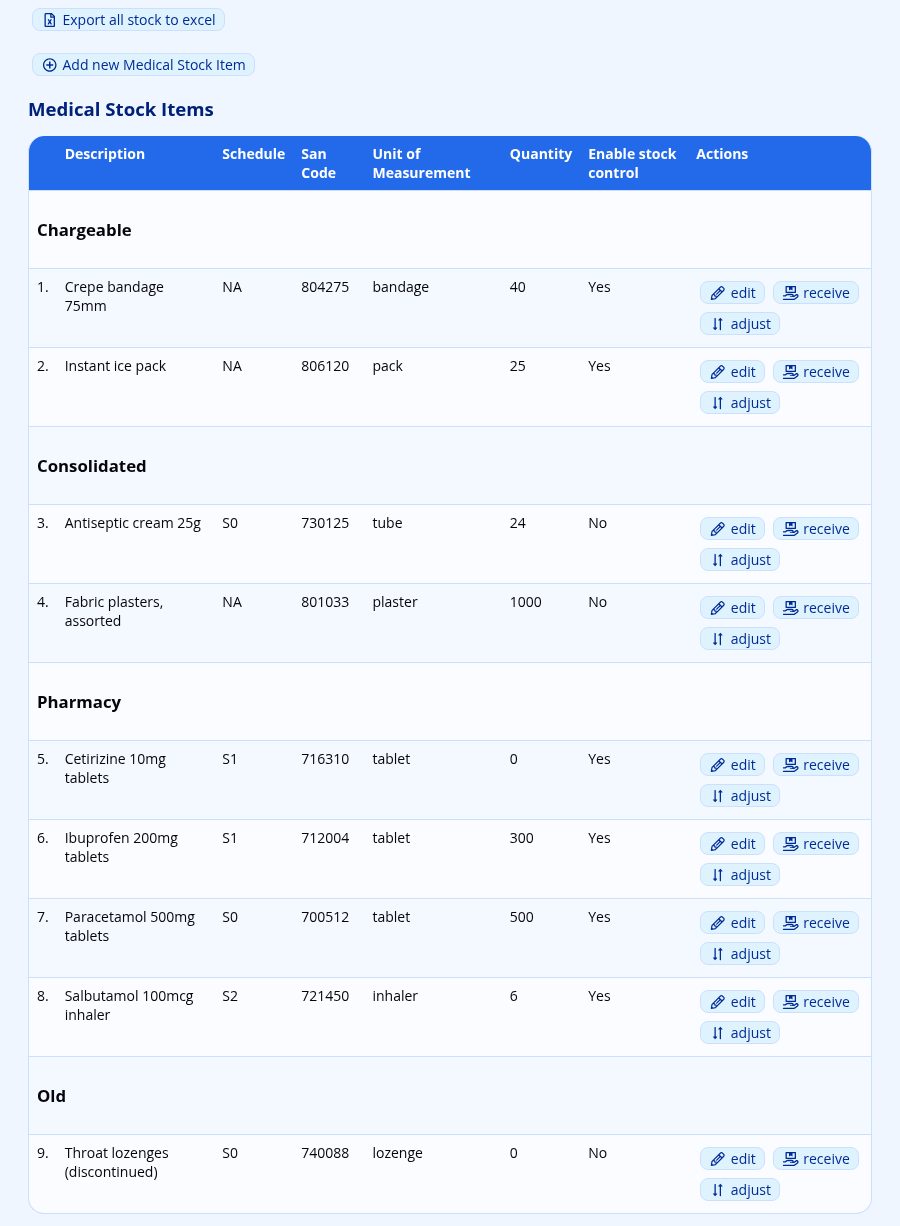
The table lists every stock item with its Description, Schedule, San Code, Unit of Measurement, Quantity and whether stock control is enabled. Items are grouped by their Group, so all the pharmacy items appear together, all the chargeable items together, and so on.
Adding and Editing a Stock Item
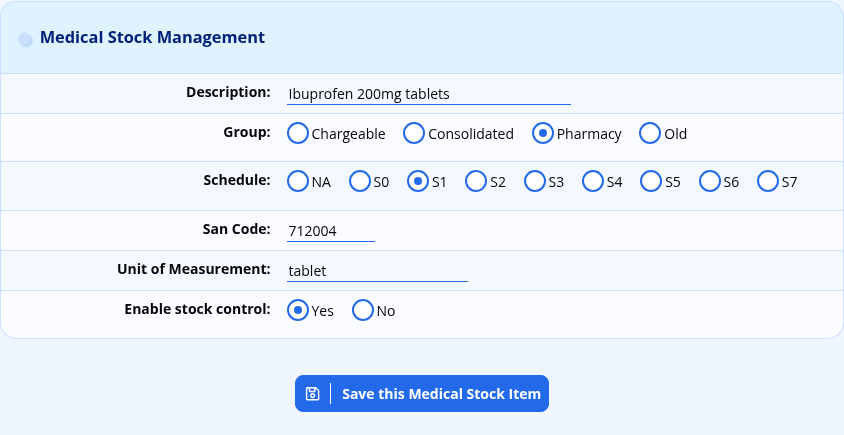
Click on Add new Medical Stock Item at the top of the table to add a new stock item, or on the edit option next to an existing one. The following fields are recorded:
- Description: the name of the item as the nurse will search for it. This is what appears in the medication list on the consultation screen, so use the name that staff will actually type.
- Group: one of Chargeable, Consolidated, Pharmacy or Old. The group sorts the stock list, and is one of the filters on the transaction reports. Old is where to put items that are no longer bought, so that they can be filtered out of the reports without their history being lost.
- Schedule: the South African medicines schedule, from S0 to S7, or NA for an item that is not a scheduled medicine. This is recorded for your own dispensing records; ADAM does not restrict who may issue a scheduled medicine.
- San Code: the item’s SAN code, used on the transaction reports so that the school’s figures can be matched against a supplier’s.
- Unit of Measurement: the unit in which the item is counted, such as “tablet”, “ml” or “dressing”. This is shown next to every quantity field, so it is worth being consistent.
- Enable stock control: whether ADAM should track the quantity on hand and refuse to issue more than there is. See Stock Control below.
An Export all stock to excel link at the top of the page downloads the whole stock table as a spreadsheet.
Stock Control
Enable stock control changes what happens on the consultation screen when a nurse searches for a medicine.
With stock control switched on, each item in the search results is annotated with its group and the quantity remaining — “12 tablet(s) in stock” — and an item that has run out is shown as *** No stock *** and cannot be selected at all. If an issue would take the balance below zero, ADAM refuses it and reports: “Insufficient stock of ‘item’ on hand. The medication has not been added to the consultation.” The rest of the consultation is still saved; only that one medication is dropped.
With stock control switched off, no quantity is shown in the search results and no issue is ever refused. The stock level is still reduced, so it can go negative, which is how a school running an unmetered item can still see how much of it has gone out.
Note
Stock control is set per item, not for the module as a whole. A school will typically switch it on for anything scheduled or expensive, and leave it off for plasters and paper cups.
Receiving Stock
Click the receive action next to an item to book in a delivery. Record the Date, the Quantity (labelled with the item’s unit of measurement), the Batch Number and any Notes, then click Save.
This adds a Received transaction and increases the quantity on hand.
Tip
The batch number is the only place ADAM records it. If your school is ever asked to trace a particular batch, the receipt transaction is what you will be searching, so it is worth capturing it every time.
Adjusting, Issuing and Writing Off Stock
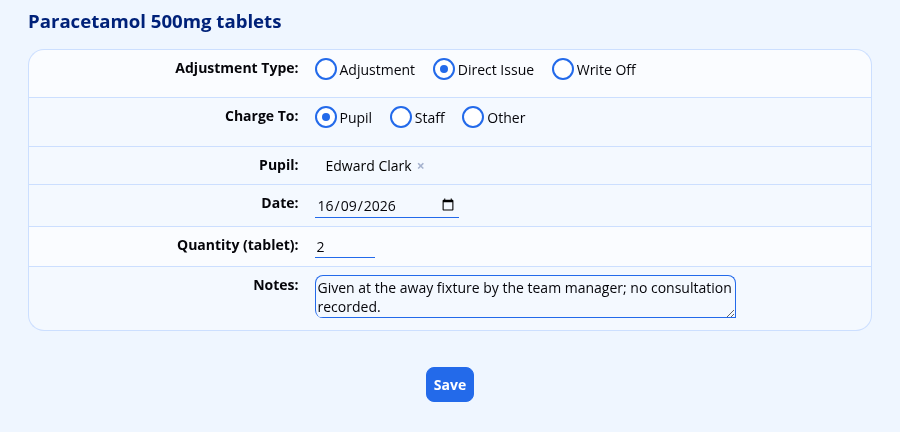
Click the adjust action next to an item. The Adjustment Type decides what ADAM does with the quantity:
- Adjustment: adds the quantity to the stock on hand. Use this to correct a stock take upwards, or to reverse a mistake.
- Direct Issue: subtracts the quantity, and records who it was issued to. Use this when medication is handed out without a consultation being recorded.
- Write Off: subtracts the quantity without charging anybody. Use this for expired or damaged stock.
For a Direct Issue, Charge To determines who carries the cost — a Pupil, a Staff member, or Other, which bills a chargeable entity. Complete the matching field below, then the Date, the Quantity and any Notes, and click Save.
Warning
Stock levels change the moment you save. There is no confirmation step and no undo — a write-off entered against the wrong item has to be put back with an Adjustment, which leaves both transactions on the report.
Medication dispensed during a consultation is recorded as an Issue rather than a Direct Issue, and is entered on the consultation screen rather than here. The distinction matters on the reports: an Issue can be traced back to a diagnosis, a Direct Issue cannot.
Chargeable Entities
A chargeable entity is anybody who can be billed for medication who is neither a pupil nor a member of staff — a visiting team, a hostel, a holiday club, or the school’s own first-aid boxes.
Navigate to Administration → Medical Administration → Manage Chargeable Entities. Each entity records an Entity Name, an Entity Account Code and an Entity Description. The account code is what appears in the Account No column of the transaction reports, so it should match whatever the school’s accounting system expects.
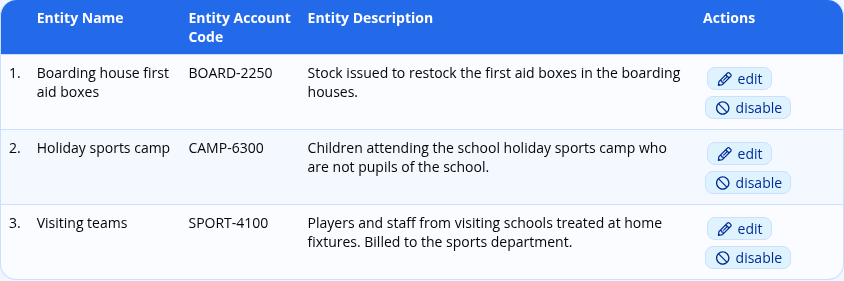
Entities can be disabled, which keeps their history but takes them out of the lists on the consultation and adjustment screens. To remove an entity altogether, disable it first: a delete option then appears next to it in the list of disabled entities, but only if nothing has ever been charged to it. An entity that has been used can only be disabled.
Consultations can be recorded against a chargeable entity in the same way as for a pupil or a staff member — see Consultations for Chargeable Entities.
The Stock Transaction Reports
Three reports read the same ledger and present it three different ways. All three are on the Administration tab under the Medical Administration heading.
Each report is split into a section per charge type, so the pupil transactions, the staff transactions and the chargeable entity transactions appear under separate headings and can be handed to different people.
All three share the same criteria:
- a Start and End date and time;
- a Transaction Type, from Issue, Direct Issue, Adjustment, Received and Write Off;
- a Consultation Type and a Charge Type, which filter on the consultation a transaction belongs to;
- an Output Format of either Web Browser or Excel.
The first two reports add a stock group filter offering Consolidated, Chargeable, Pharmacy and Old, so a school that only bills for one group can exclude the rest.
Note
That stock group filter is labelled Transaction Type on screen, which is the same label as the list above it. It is the second of the two. This is a known labelling error rather than a second set of transaction types.
All of the multiple-selection lists start with everything selected, so a report run without narrowing anything down returns the lot. Click View Report to produce it.
Stock Transaction Report
View Medical Stock Transaction Report is the full ledger: one row per transaction, showing the Date/Time, consultation Type, Stock Code, Stock Description, Stock Group, transaction Type, Notes, Quantity, and the stock level Stock Before and Stock After. For pupils, each row also carries the Admin No, Surname, First Name, Class and Grade.
It defaults to the previous calendar month, which is the period most schools bill in arrears.
Grouped Stock Transaction Report
View Grouped Medical Stock Transaction Report totals the quantities by pupil and by stock item, so a pupil who was given six headache tablets across a term appears once with a quantity of six rather than on six separate rows. The columns are the pupil’s details, the Stock Code, Stock Description, Stock Group and the total Quantity.
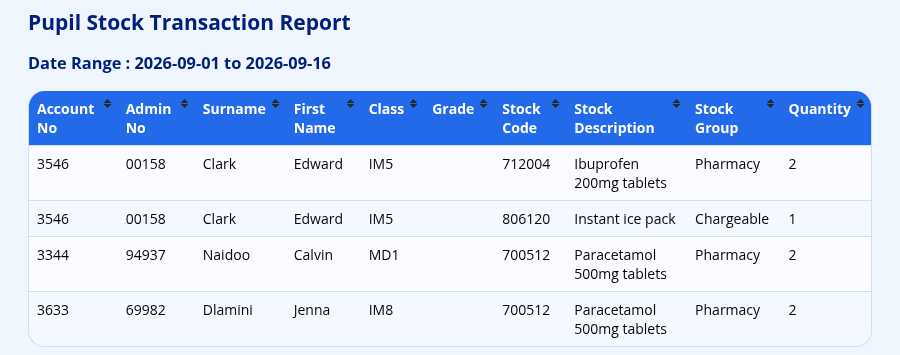
Only Issue and Direct Issue are selected by default here, since receipts and write-offs are not chargeable to anybody. This is the report to use for billing.
Stock Transaction Report (by Stock Item)
View Medical Stock Transaction Report (by Stock Item) asks for a Stock Item first and then reports every movement of that one item, in the same columns as the full ledger. Use it to answer “where did all the antihistamine go?”, or to reconcile one line of a stock take.
The start date defaults to the first of the current month, and the end date is left for you to fill in.
Account Numbers on the Reports
The Account No column is filled from a field on the pupil’s or staff member’s record, which the school chooses. Navigate to Administration → Site Administration → Edit site settings and, on the Pupils & Families tab under the Medical Information heading, set:
- Pupil Account Field — the field holding the account number to charge for pupil medical transactions;
- Staff Account Field — the same for staff.
Either may be a core field or a custom field. If a school bills medical items to the family’s main school account, this is where you point ADAM at it.
Permissions
Two permissions govern this page, both under the Wellbeing group in the staff permissions:
| Permission | What it allows |
|---|---|
Medical Administration → Manage Medications (medical_medication_manage) |
Managing stock items, receiving, adjusting and writing off stock, and reaching the three transaction reports. |
Medical Administration → Manage Chargeable Entites (medical_billing_manage) |
Adding and editing chargeable entities. |
Note
A third permission, View Medical Transactions Report (medical_transaction_view), also exists and guards the reports themselves. Because the menu options that lead to them currently check Manage Medications instead, a staff member given only View Medical Transactions Report has no menu entry to click. Give the bursar Manage Medications until this is resolved.