
Name Pronunciations
A name pronunciation is a short recording of how somebody’s name is said. Once one exists, a small media control appears on that pupil’s or staff member’s name card, and anybody who can see the profile can play it.
There are two ways to get a recording into ADAM:
- Record it in the browser. A teacher can record a pupil’s name with the class in front of them, a staff member can record their own name, and parents and pupils can record from the portal. Nothing needs to be installed and no file needs to be found.
- Upload an audio file. The older method still works. An audio file placed in the Name Pronunciation category of the Document Repository is played exactly as before.
Recordings made from the portal are not audible to anybody until a staff member has listened to them and approved them. Everything else is audible straight away.
Warning
This feature records children’s voices. ADAM does not ask for consent on your behalf and does not delete recordings on a schedule — deciding what consent you need, and how long you keep recordings, is your school’s responsibility.
Switching the feature on
Nothing described on this page is visible until you grant the permissions below. Both start switched off, for every school, so a school switches this on deliberately.
The staff permission
Manage Name Pronunciations appears on the Pupil Admin tab, under the Pronunciation heading, when you change the permissions of a staff group.
It allows the holder to record a pupil’s name, and to approve or reject the recordings that parents and pupils submit. Because rejecting a recording deletes it, the permission also allows its holder to delete documents in the two Name Pronunciation categories, whether or not they have been given access to those categories in the document repository. It grants no other access to those categories — a holder who cannot otherwise read them still cannot read them.
The parent and pupil permission
Record name pronunciation appears under the Pronunciation heading when you manage a pupil login group’s permissions.
As with most of these permissions there are separate tick boxes for Pupils and Families, so recording can be offered to parents only, to pupils only, or to both. It applies to currently registered pupils only.
Recording a pupil’s name with the class
Navigate to Pupils → Names and Faces → Record Name Pronunciations by Class and choose a class. Any class with recordings waiting for approval is listed with a count beside it.
The class list shows every pupil in the class with four columns — Pupil, Clip, Status and Actions. The Clip column holds a media control for any recording that pupil already has, so you can listen before deciding what to do. Status is one of Nothing recorded., Pending approval or Approved.
Actions holds Approve and Reject for a recording that is waiting for approval, and Record for every other pupil.
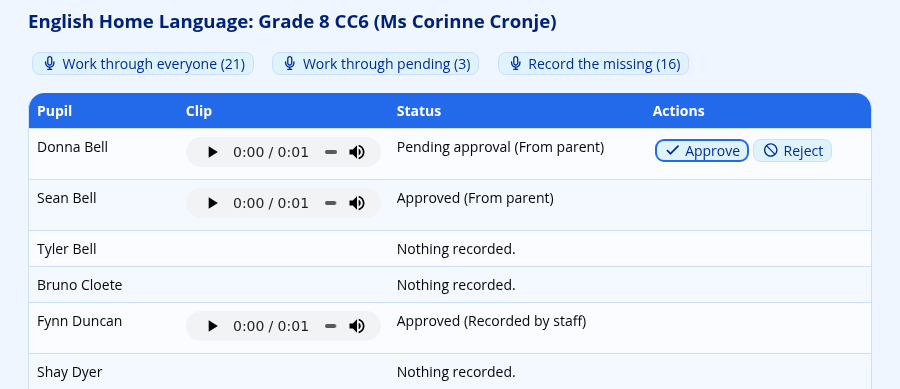
Recording one pupil at a time
Click Record beside a pupil to record that pupil alone. When you click Save, ADAM returns you to the class list, where you can choose the next pupil. Use this when children come to you in any order rather than down the register.
A pupil whose recording is waiting for approval has no Record link. Approve it, or reject it and then record the name yourself.
Working through the class
Above the list are three links, each with a count:
| Link | Takes you through |
|---|---|
| Work through everyone | Every pupil in the class, in turn. |
| Work through pending | Only the pupils whose recording is waiting for approval. |
| Record the missing | Only the pupils with no recording at all. |
Each of these opens a single pupil at a time, with the recorder and a Skip to the next pupil link. The heading says how many pupils are left, counting the one on the screen — 6 remaining, then 5 remaining, and so on down to 1 remaining. This is the quickest way to get through a register class in register order: call a name, record, save, and ADAM moves on by itself.
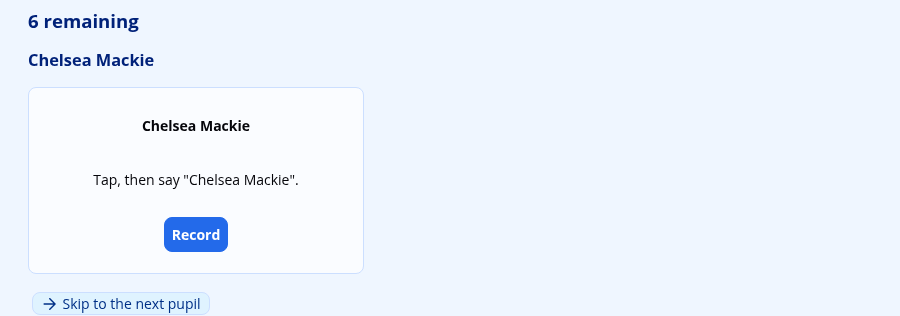
If you have recorded something but not yet saved it, Skip to the next pupil and Back to the roster both ask Discard this recording? before they leave the page. A recording you have not saved is lost when you leave the pupil.
How the recorder works
The recorder is the same wherever it appears.
- Click Record. The first time, your browser asks whether ADAM may use the microphone — you must allow it.
- ADAM counts down: Get ready… 3, 2, 1.
- Recording — say the name now. Say the name.
- Recording stops on its own after five seconds. There is no stop button and there does not need to be.
- Listen back to what you recorded, then either Try again or Save.
Nothing is sent to ADAM until you click Save, so you can re-record as many times as you like.
Five seconds is a deliberate limit and it is enforced by the server as well as by the browser — a name takes two or three. Recordings are saved as small mono audio files, so a whole class costs very little space.
When recording is not possible
Recording needs a microphone, a secure (https) connection, and a browser that allows a web page to use the microphone. Most modern browsers on a computer, phone or tablet do. Some do not — in particular, a page opened inside another app’s built-in browser (from a link in a messaging app, for example) often cannot reach the microphone at all.
Where that happens, the recorder says so plainly and offers an Upload an audio file instead link, which opens the document repository at the Name Pronunciation category. An uploaded file is accepted in any common audio format; MP3 is the safest choice.
If the browser has been refused permission, ADAM says so and offers Try the microphone again. You may need to change the site’s microphone setting in the browser first — this is a browser setting, not an ADAM one.
Approving recordings from parents and pupils
A recording made by a member of staff is audible immediately: somebody who can be trusted with the pupil was present when it was made. A recording made in the portal waits, because nobody at the school has heard it yet.
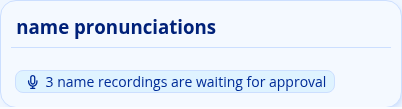
When anything is waiting, a panel appears on the ADAM front page for everybody holding Manage Name Pronunciations, reading “3 name recordings are waiting for approval”. It disappears when the queue is empty.
You can also reach the queue at any time from Pupils → Names and Faces → Approve Name Recordings.
The queue is school-wide, oldest first, and lists the Pupil, their Class, a media control under Clip, who made the recording under Recorded by, and its Length.
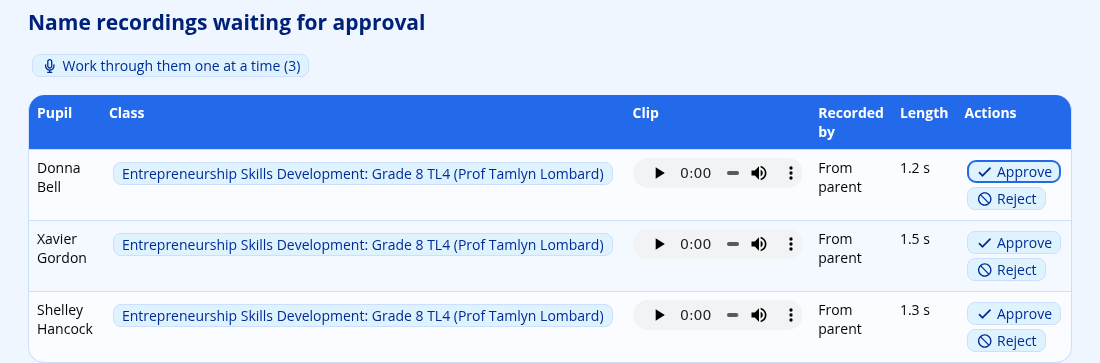
Listen to it and choose:
- Approve — the recording becomes the audible one for that pupil straight away. Any recording that was audible before is deleted.
- Reject — the recording is deleted.
Warning
Rejecting a recording deletes it permanently and immediately. It is not kept anywhere, and neither the parent nor the pupil is told. If a recording is simply wrong, the kindest thing to do is reject it and record the name yourself while you are there.
There is also a Work through them one at a time link, which presents the queue one pupil at a time with Approve & next and Reject buttons and the recorder underneath, so you can approve, or reject and immediately re-record, without going back to the list.
What parents and pupils see
A parent or pupil with the Record name pronunciation permission gets a How we say your child’s name entry (How we say your name for a pupil login) under the General heading of the portal menu.
The page lists each child the login covers, with one of three status lines:
- Nothing recorded yet.
- Waiting for the school to approve your recording.
- Approved.
Underneath each child is the same recorder described above. Children with no recording are listed first.
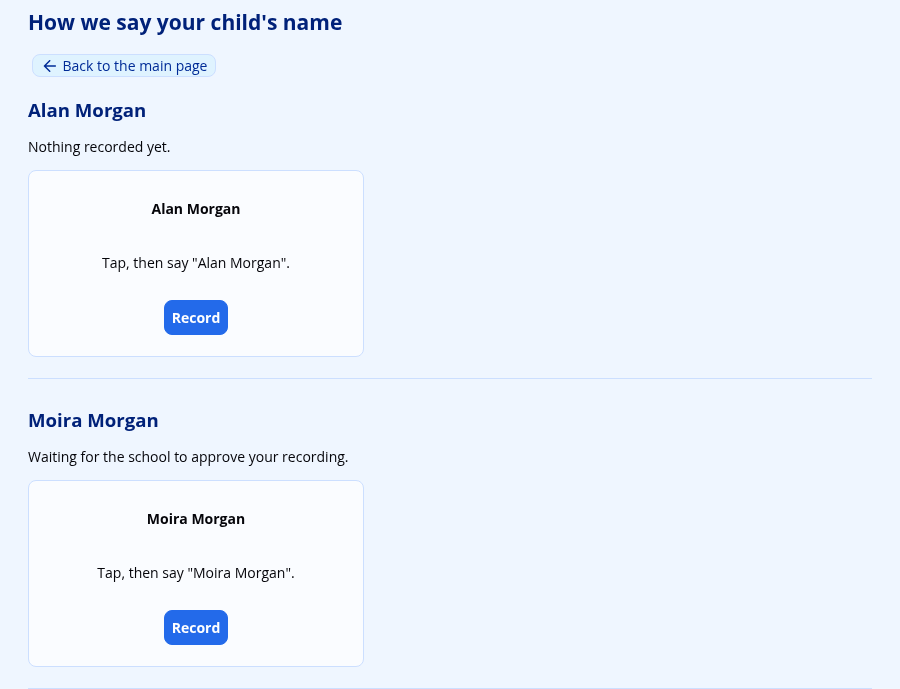
Recording again simply replaces whatever was there. A parent who is unhappy with the recording they submitted yesterday can record a new one today without asking anybody; the new one waits for approval in place of the old one.
Prompting parents and pupils to record
Navigate to Administration → Site Administration → Edit site settings, click on the Pupils & Families tab and scroll down to the Widgets heading.
Nag parents and pupils to record a name pronunciation: set this to Yes to show a short prompt on the portal front page — “We don’t have a recording of how to say Connor’s name yet.” — with a Record now link straight to the recording page. It starts as No.
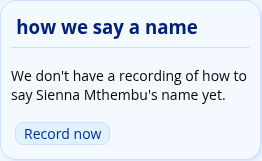
The prompt only appears for a child with no recording at all. A recording that is waiting for approval silences it, so a parent who has done what was asked is not nagged again while they wait.
Staff recording their own name
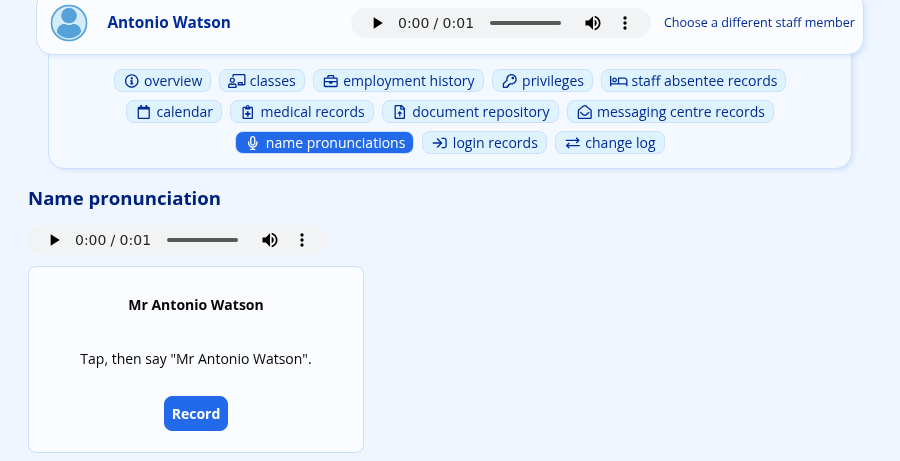
A staff member’s profile has a Name Pronunciations tab. Every staff member sees it on their own profile; anybody holding Manage Name Pronunciations sees it on everybody’s.
The tab plays the current recording, if there is one, and offers the recorder. A staff member recording their own name needs no approval — there is nobody else to approve it for them — so it becomes audible as soon as it is saved.
Uploading a file instead of recording
The Name Pronunciation category in the document repository still works exactly as it always has, and it is the right place to go when recording is not possible, when you have a recording somebody sent you, or when you are loading many names at once. See the Document Repository documentation for uploading many files at once.
Two things are worth knowing about uploads:
- A file uploaded by a member of staff becomes audible immediately, just as it did before recording existed. This is the behaviour that predates this feature and it has not changed.
- A file uploaded by a parent or pupil through the portal’s document repository waits for approval, exactly like a recording made in the browser. It appears in the same queue.
Recordings that were uploaded before your school updated to this version keep playing and need no approval.
Removing a recording
Deleting the audio file from the document repository removes the recording. If the file you delete was the audible one, ADAM promotes the most recent remaining file in that person’s Name Pronunciation category in its place, so a name that had two recordings does not fall silent because you tidied up the newer one. If there is nothing left, the media control disappears from the name card.
Note that recording again does not delete the earlier file: the pointer moves to the new recording and the old file stays in the document repository. Over a few years a pupil may accumulate several. Only the current one is ever played.