
Certificates
ADAM can print certificates for pupils in two ways:
- From Records and Points. Where a Records and Points category has an attendance register, ADAM can print a certificate for each pupil who has a record in that category. See Printing Certificates from Records and Points.
- As a one-off. You choose the pupils by name and type the wording yourself, with no Records and Points record behind the certificate. See Printing a One-off Certificate.
Both use a saved certificate layout. A layout says which background to print on, the page size, and where each piece of text goes. A school that prints more than one kind of certificate, such as a sport certificate and a cultural certificate, keeps one layout for each and chooses the right one every time it prints.
Printing never changes a layout. Two people can print different certificates at the same time without affecting each other’s positions.
Permissions
Two permissions control certificates. Both are in the Records and Points section of the permissions list.
- Create certificates from Records and Points events lets a staff member print certificates, both from Records and Points and as one-offs.
- Manage certificate layouts lets a staff member add, edit, preview, disable and delete layouts.
When ADAM was updated to use certificate layouts, every group that already had Create certificates from Records and Points events was also given Manage certificate layouts. Remove it from any group that should only print.
To tick records for printing from Records and Points, a staff member also needs the Add Records and Points permission. Without it, the list of records is shown but nothing can be ticked.
Uploading Certificate Templates
A certificate template is a PDF that ADAM prints the pupil’s details on top of. You do not need one: if you print onto pre-printed certificate stationery, leave the layout’s template as “No template”. With more and more awards being issued electronically, even for archival purposes, a template is useful for a purely electronic certificate that can be emailed.
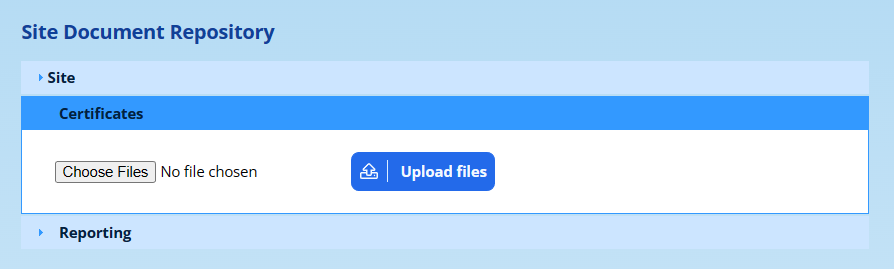
Navigate to Administration → Document Repository → View the Site Document Repository and upload the PDF into the “Certificates” category. See Site Document Repository.
Kindly note the following:
- The certificates should be one of the standard sizes A4 or A5 (either portrait or landscape). Other sizes will be truncated to fit the size chosen in the layout.
- The PDF document must be compatible with PDF Version 1.4 (Adobe 5). If you have a graphic designer working with your certificates, they should be able to export the template in this format for you. If you upload the certificate in a newer format, it may work, but it may give unpredictable results and errors.
- Only PDF documents in the “Certificates” category are offered as templates. ADAM uses the first page of the PDF.
Certificate Layouts
On the Pupils tab, under the Records and Points Admin heading, click on Certificate layouts. You need the Manage certificate layouts permission to see this option.
The Edit Certificate Layouts page lists the layouts in use under Certificate Layouts, with each layout’s Layout name, Background template and Page size. Disabled layouts are listed below them, under Disabled Certificate Layouts.
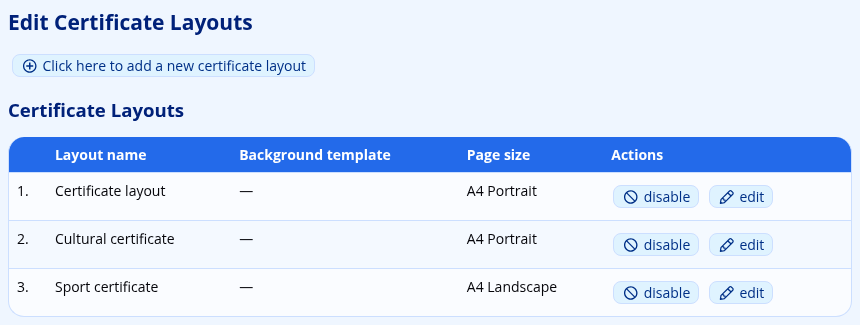
In the Actions column:
- edit opens the layout so that you can change it or preview it.
- disable moves the layout to the Disabled Certificate Layouts list. A disabled layout is not offered when certificates are printed.
- enable, on a disabled layout, brings it back into use.
- delete, on a disabled layout, removes it permanently once you have confirmed. A layout must be disabled before it can be deleted.
Adding a New Layout
Click on Click here to add a new certificate layout at the top of the page. The same form is used to edit a layout.
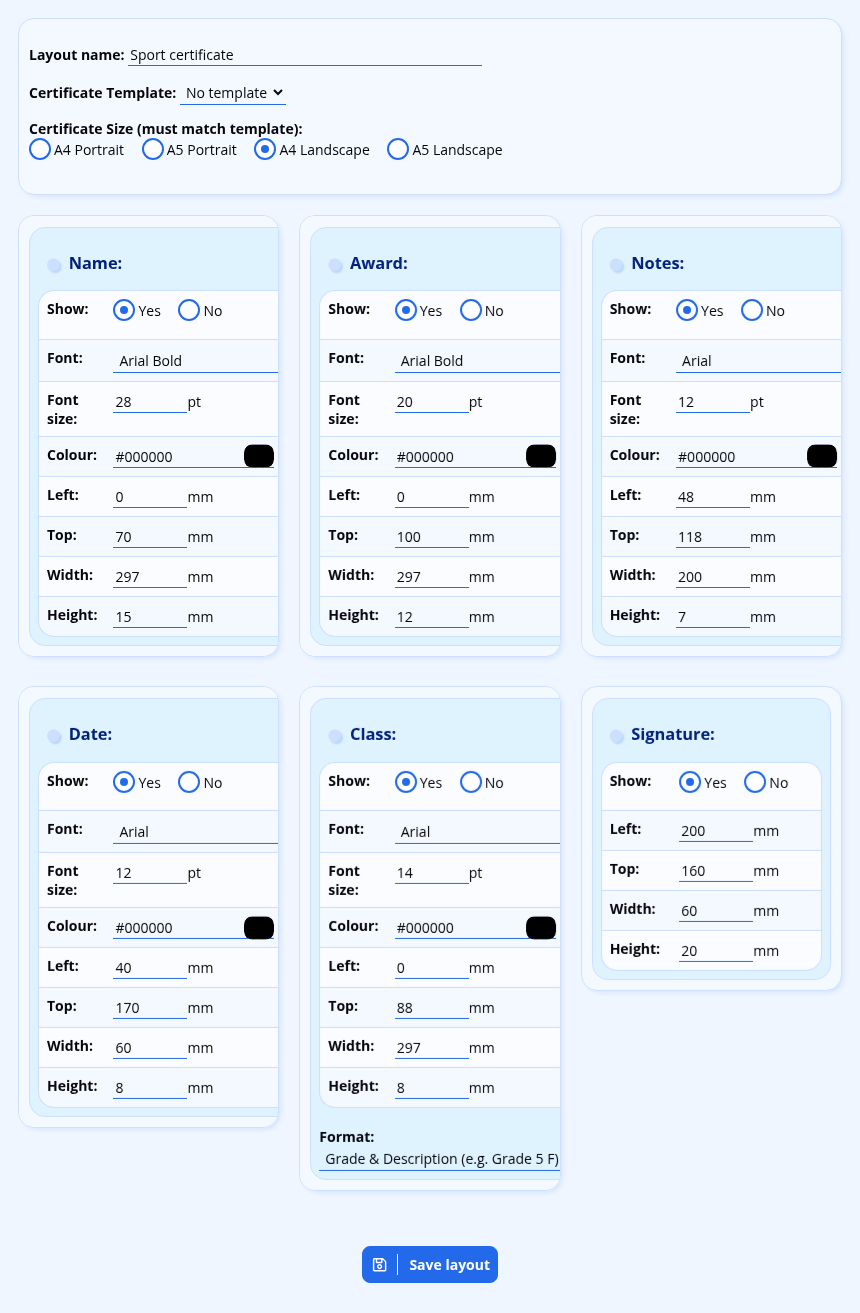
- Layout name: the name that staff choose from when they print, such as “Sport certificate” or “Cultural certificate”. A layout must have a name.
- Certificate Template: the PDF that the text is printed on. The list shows the documents uploaded to the “Certificates” category. Choose “No template” to print onto pre-printed certificates.
- Certificate Size (must match template): A4 Portrait, A5 Portrait, A4 Landscape or A5 Landscape.
Below these are six blocks, one for each piece of text that ADAM can place on the certificate:
| Block | What is printed |
|---|---|
| Name | The pupil’s name. |
| Award | The name of the Records and Points category, or the award you type for a one-off certificate. |
| Notes | The notes on the Records and Points record, or the notes you type for a one-off certificate. |
| Date | The date you type when you print. |
| Class | The pupil’s class. |
| Signature | The school’s signature image. |
Each block has these settings:
- Show: choose No to leave this piece of text off the certificate.
- Font, Font size and Colour: how the text looks.
- Left and Top: how many millimetres the box starts from the left and top edges of the page.
- Width and Height: the size of the box, in millimetres.
The text is centred in its box and may overflow it. Notes behaves differently: long notes wrap onto as many lines as they need, and Height sets the height of each line rather than of the whole box.
The Class block also has a Format setting:
- Grade & Description (e.g. Grade 5 F)
- Grade (e.g. Grade 5)
- Description (e.g. F)
The Signature block has no font or colour settings, because it prints an image. ADAM uses the Default Report Signature, which is chosen under Administration → Site Administration → Edit site settings, on the Appearance tab under the Branding heading. If no signature has been chosen there, the block is left empty.
When setting up a layout for the first time, it is often useful to draw some pencil boxes on a printed certificate where you expect the text to be displayed. Then measure the top left corner of each box (for the “Left” and “Top” measurements), as well as the box’s width and height.
Click on Save layout to save the layout.
Previewing a Layout
Previewing prints one certificate from a saved layout using sample text, so that you can check the positions without finding real records.
Open the layout with edit, then click on Preview this layout with sample text at the top of the page.
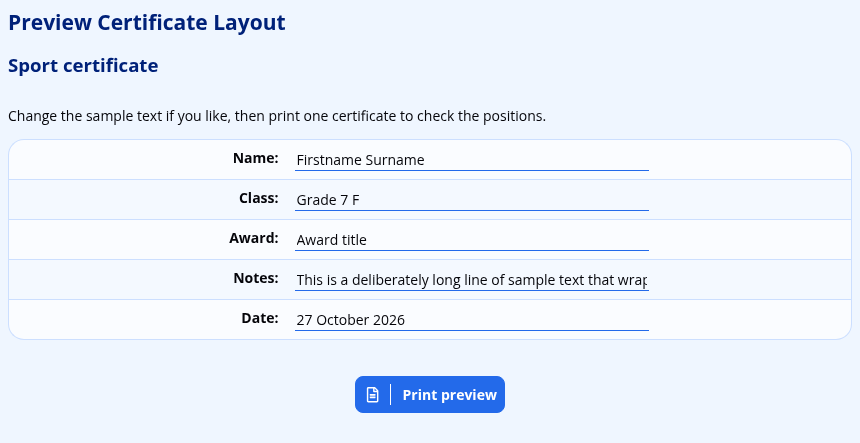
The Name, Class, Award, Notes and Date fields are filled in with sample text. The sample notes are deliberately long, so that you can see how notes wrap. Change any of the text if you would like to check a real pupil’s name or a particular award, then click on Print preview. The certificate opens in a new tab.
The preview uses the layout as it was last saved. Save your changes before you preview them.
Layouts Carried Over from Earlier Versions
Before certificate layouts were added, ADAM kept a single set of certificate settings for the whole school, and changed it every time someone printed. When your school was updated, those settings became a layout called “Certificate layout”. Rename it, or add further layouts alongside it.
Preview the carried-over layout before you next print from it. Two things may need correcting:
- If the school never saved a position for a block, that block starts 150 mm from the top of the page and may overlap the name.
- A font chosen several years ago under an older name, such as “Arial Bold”, has become plain Arial. Choose the bold font again.
Printing Certificates from Records and Points
Certificates can be printed from any Records and Points category that has an attendance register. See Adding a new Records and Points Category. ADAM lists the pupils who have a record in that category but have not yet been marked as having “attended”. In this context, “attended” could be read as being: “attending the awards ceremony”.
On the Pupils tab, under the Records and Points Admin heading, click on Print certificates.
- Choose the Records and Points Category and click on Next.
- Choose the Date and click on Next. The list shows the 30 most recent dates on which records were added in that category.
The Printing Certificates page lists the records for that date, together with any earlier records in the category for pupils who have not yet attended.
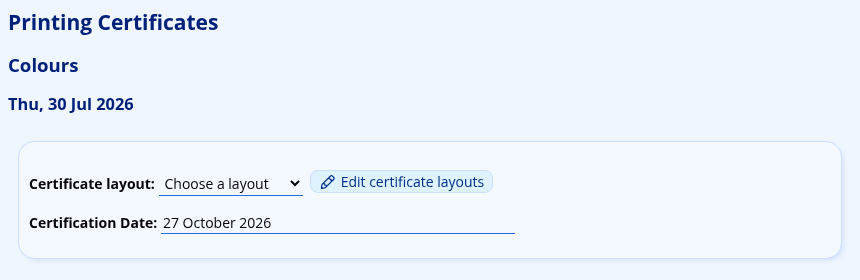
- Certificate layout: choose the layout to print with. No layout is chosen for you, so that a sport certificate is never printed with a cultural layout by mistake. Staff with the Manage certificate layouts permission also see an Edit certificate layouts link here.
- Certification Date: the date printed in the Date block. It starts as today’s date, and you can type any wording you like.
Below these settings is the list of records. Those that are ticked in the Print column will be printed:
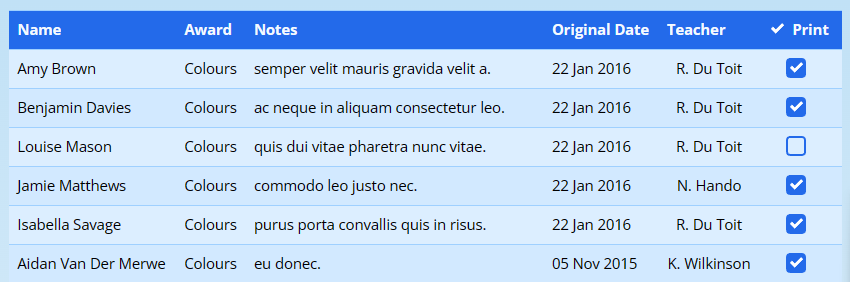
Records for pupils who have already attended show the date and the staff member who marked them, and cannot be ticked. The Class block shows the pupil’s class on the date you chose.
Finally, click on the Generate certificates button to have ADAM compile the certificates for you. They open in a new tab, and can then either be printed or saved. You might also use a free online service to split the PDF into individual documents so that the certificates can be emailed individually.
Printing does not mark the pupils as having attended. Record that on the category’s attendance register as usual.
ADAM shows a message instead of certificates when:
- no layout was chosen: “Please choose a certificate layout.”
- the layout was disabled or deleted after the page was opened: “That certificate layout is no longer available.”
- no records were ticked: “Please tick at least one record to print.”
If no layouts have been set up, the page says “No certificate layouts have been set up yet.” See Adding a New Layout.
Printing a One-off Certificate
A one-off certificate is for an award that is not recorded in Records and Points, such as a prize at an inter-house event. You can print it for one pupil or for several at once. Nothing is recorded on the pupils’ profiles.
On the Pupils tab, under the Records and Points Admin heading, click on Print a one-off certificate.
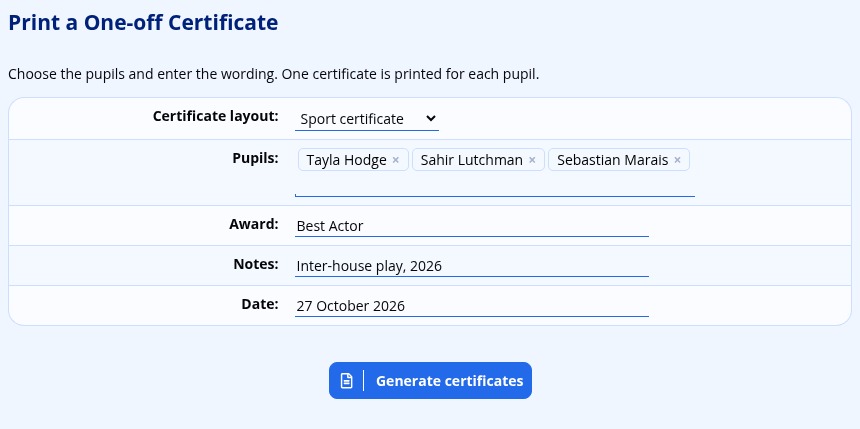
- Certificate layout: the layout to print with.
- Pupils: type in part of a pupil’s name and choose the pupil from the list that appears. Repeat for each pupil. Because each name comes from the pupil’s record, it is spelt exactly as ADAM has it.
- Award: the wording for the Award block, such as “Best Actor”.
- Notes: the wording for the Notes block. This can be left empty.
- Date: the date printed in the Date block. It starts as today’s date.
Click on Generate certificates. ADAM prints one certificate for each pupil, all with the same award, notes and date, in a new tab. The Class block shows each pupil’s current class.
If no layout or no pupil was chosen, ADAM shows a message saying so instead.