
Matching Uploads to People
Some uploads hold files or values that ADAM must match to pupils or staff members. ADAM matches them first and then shows a review page. On that page you check the matches before ADAM saves anything. Open the rows marked Check or No match, choose the right person or tick Ignore, then click Confirm. ADAM remembers the choices you confirm, for you only.
Four uploads work this way:
| Upload | Where to find it | Matched against |
|---|---|---|
| Document Repository bulk upload | Pupils → Document Repository → Upload documents in bulk, or Staff → Document Repository → Upload documents in bulk | Current pupils for a pupil category, current staff for a staff category |
| Pupil photographs | Pupils → Names and Faces → Upload new pupil photographs | The pupils in the Choose Pupil Dataset option you choose |
| Staff photographs | Staff → Names and Faces → Upload new staff photographs | Current staff |
| Assessment results | Assessment → Assessment Administration → Import assessment results | The pupils enrolled during the import’s reporting period |
How to make each upload is described on its own page: Uploading Documents in Bulk, Pupil Photographs, Staff Photographs and Importing Assessment Results. This page describes the review page that all four share.
You need the same permission for each upload as before. There is no new permission. Parents and pupils do not see the review page.
How ADAM Matches a Name
ADAM reads the file name, or the spreadsheet value, as a list of words. Capital letters, accents and apostrophes make no difference. The file extension, and any folder the file was in inside a ZIP file, are ignored.
ADAM finds a person in these ways:
- The person’s name. Every word of the surname, and every word of the first name or of the full first names, is in the file name, in any order, with or without other words around them. For example,
Term 3 report Mokoena Thabo 9B.pdffinds Thabo Mokoena. - The surname and the first initial. The file name is only the surname and the initial, separated by a space, in either order. For example,
Mokoena T.jpgorT Mokoena.jpg. - The surname and the initial joined together. The file name is one word, such as
MokoenaT.jpg. ADAM shows this as Probable, because one word can also be another person’s surname. A file name that is somebody’s whole surname is never read this way:Peters.jpgis never matched to Sam Peter. - An admin number, username or ID number on its own. For example,
12345.jpg. - An admin number, username or ID number as one word among others. For example,
Report 12345.pdf. ADAM shows this as Probable. If the file name also holds a name, ADAM ignores the number. - A match you confirmed before. See Remembered Matches.
When you import assessment results and choose a pupil field other than Match by name, ADAM does not use these rules. The value must equal the field exactly, but capital letters make no difference.
ADAM only searches the group of people the upload is matched against. A pupil who has left is not found in an upload for current pupils.
The Review Page
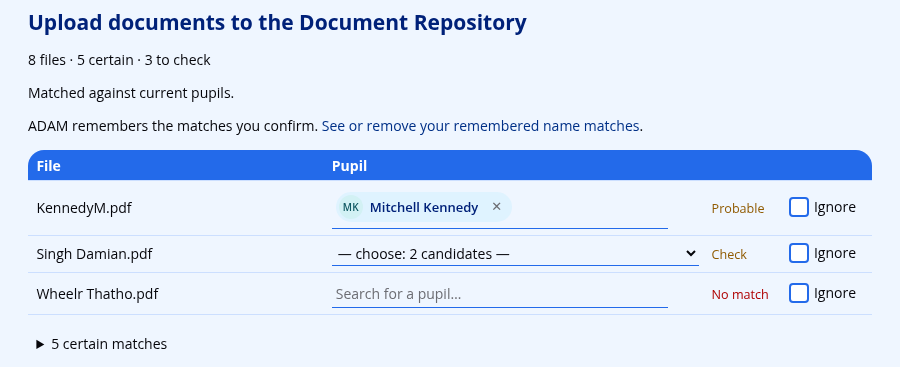
After you upload, ADAM takes you to the review page. Nothing has been saved yet.
The heading is the name of the upload: “Upload documents to the Document Repository”, “Upload pupil pictures”, “Upload staff pictures” or “Import assessment results”. Under the heading, ADAM shows:
- A count, such as “12 files · 9 certain · 3 to check”. For an assessment import it counts values instead of files.
- The group of people ADAM searched, such as “Matched against current pupils.”
- A link, See or remove your remembered name matches, which opens Your Remembered Name Matches.
The rows that need checking are listed first. Each row shows the File (or the Value, for an assessment import), the Pupil or Staff member, a status, and an Ignore tick box.
The certain matches are folded away under a line such as “9 certain matches”. Click on the line to open them. They are not saved until you click Confirm, and you can still change or ignore any of them.
Choosing a Person
Most rows have a search box, “Search for a pupil…” or “Search for a staff member…”. Type part of a name and choose the person from the list. The search only offers people in the group the upload is matched against.
When ADAM found several people, the row has a drop-down list instead. It starts at “— choose: 3 candidates —”, with the number of people ADAM found. You must choose one of them, or tick Ignore.
Tick Ignore to leave a row out. ADAM saves nothing for an ignored row, even if it has a person.
Status Words
The status tells you how sure ADAM is about the row.
Certain
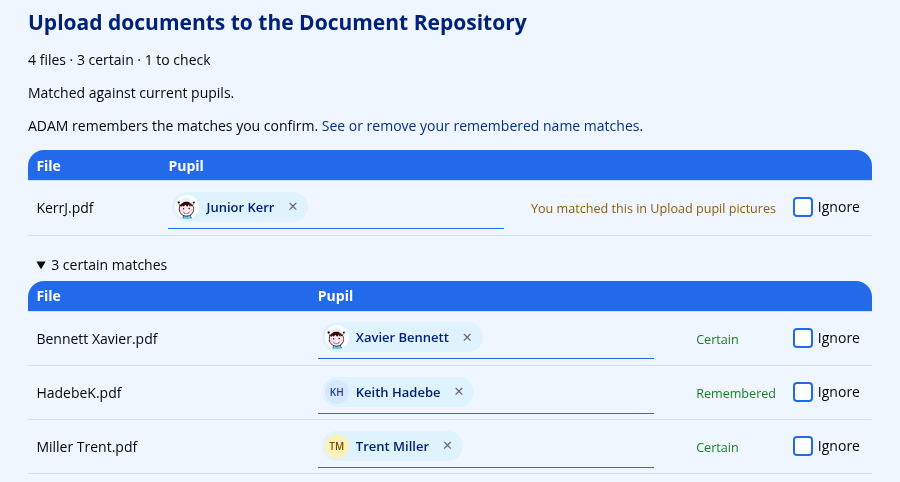
ADAM found exactly one person, by name, by surname and initial, or by an admin number, username or ID number on its own. In an assessment import that uses a pupil field, the value equals that field for exactly one pupil. Certain rows are folded away under the certain matches.
Remembered
ADAM found exactly one person, because you confirmed the same match before in this same kind of upload. A remembered row is certain, and is folded away with the certain matches.
Probable
ADAM found one likely person, but not by a certain rule. The person is selected for you. Check that the person is right before you confirm.
You matched this in …
The row reads, for example, “You matched this in Upload pupil pictures”. You confirmed this match before in a different kind of upload, so ADAM treats it as probable. The person is selected for you. Check that the person is right before you confirm.
Check
ADAM found several people who fit. Choose one from the drop-down list, or tick Ignore.
No match
ADAM found nobody. Search for the person, or tick Ignore.
Confirm
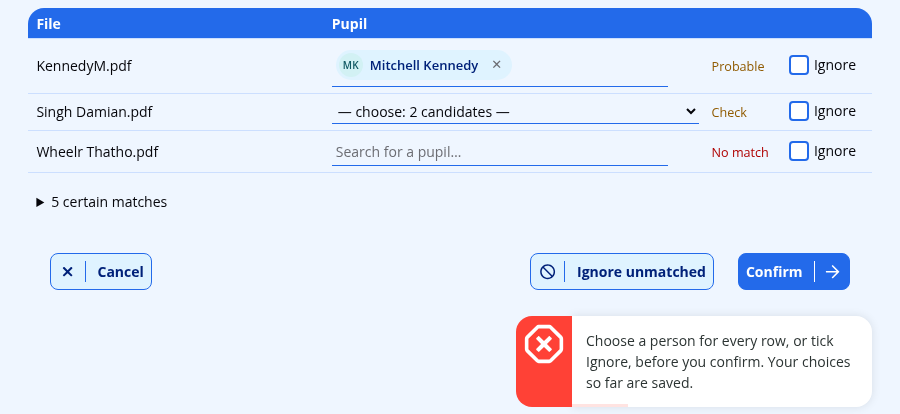
Click Confirm to save the upload. Every row needs a person or the Ignore tick. If a row has neither, ADAM saves nothing and shows the review page again with the message “Choose a person for every row, or tick Ignore, before you confirm. Your choices so far are saved.”
After you confirm, ADAM saves what you confirmed and shows the results. For a document or photograph upload this is the upload’s results page. For an assessment import, ADAM takes you to the subject step of the import.
Ignore unmatched
Click Ignore unmatched to confirm and leave out every row that has no person. This includes the rows marked Check where you have not chosen anyone. Rows that already have a person, including the Probable rows, are saved with that person. Use it when you have checked the rows you care about and want to skip the rest.
Cancel
Click Cancel to abandon the upload. ADAM saves nothing and takes you back to the upload form. ADAM deletes the uploaded files later, as described in How Long ADAM Keeps an Upload.
Messages on the Review Page
- “A person you chose is not one of the current pupils. Nothing was saved. Please choose again.” The group in the message is the group the upload is matched against. A person you chose is not in it. Choose another person, or tick Ignore.
- “Nothing was saved, because this batch has more rows than the server accepts in one form …” The upload has more rows than your server allows in one form. Ask your administrator to raise the server’s
max_input_varssetting, or upload the files in smaller batches. - “Some items could not be saved; see the list below.” ADAM confirmed the upload, but some files could not be saved. The results page lists them. The upload cannot be opened for review again: upload those files again.
Who Can Open the Review Page
Only the staff member who made the upload can open its review page. The review page has no menu item. If you leave it before you confirm, use your browser’s Back button to return to it, or upload the files again.
If you open the review page of an upload that you have already confirmed, ADAM takes you to its results page instead. For an assessment import, it takes you to the subject step.
Remembered Matches
When you confirm a row that was not certain, ADAM remembers the match for you. The next time the same file name or value appears, ADAM finds the same person. This is how ADAM learns a file name that it could not match on its own, such as a nickname.
- A remembered match belongs to the staff member who confirmed it. ADAM uses it only for your uploads. Other staff members cannot see it, and their uploads are not affected by it.
- In the same kind of upload, a remembered match makes the row certain. Its status is Remembered.
- In a different kind of upload, it makes the row probable, with the person selected for you. Its status is You matched this in …, and the row is listed with the rows to check.
- ADAM remembers the words of the file name or value, not the file. The words must all be the same next time, but their order and capital letters do not matter. ADAM does not remember the file extension.
- ADAM does not remember rows you ignored, or rows that were already certain. This holds even when you change the person on a certain row.
- If the remembered person is not in the group the upload is matched against, ADAM ignores the remembered match. For example, a pupil who has left is not found in an upload for current pupils.
- When you import assessment results, ADAM uses remembered matches only with Match by name.
If a remembered match is wrong, change the person on the review page, then remove the match on Your Remembered Name Matches. A remembered row is certain, so changing its person does not change what ADAM remembers.
Your Remembered Name Matches
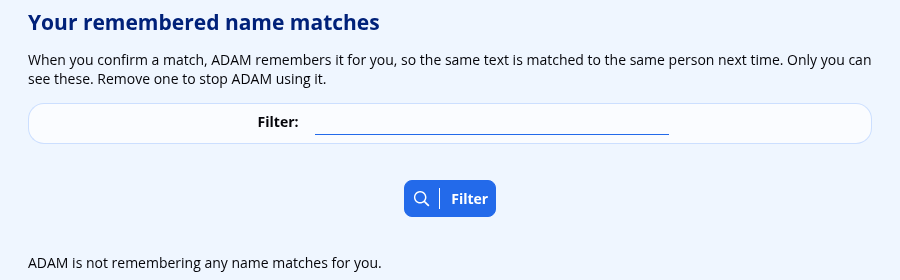
To see the matches ADAM remembers for you, go to Staff → General → Your remembered name matches, or click See or remove your remembered name matches on a review page. Every staff member who can log in can open this page. No permission is needed.
The page lists your remembered matches, newest first, in these columns:
- Text — the words ADAM remembers, in lower case and in alphabetical order. For example,
Mokoena Thabo.jpgis shown as “mokoena thabo”. - Person — the pupil or staff member. A person who has since been deleted shows “(no longer exists)”.
- Class — for a pupil, the grade and class.
- Used in — the upload in which you confirmed the match, such as “Upload pupil pictures”.
- Remembered — when you confirmed it.
- Last used — when ADAM last used it to make a row certain, or “Never”.
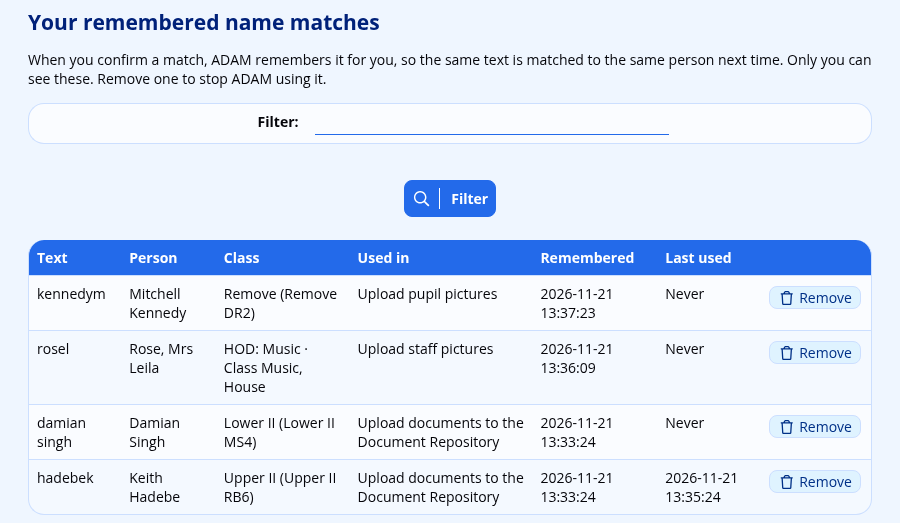
Type in the Filter box and click Filter to show only the matches whose text, person, class or upload contains what you typed.
Click Remove to stop ADAM using a match. ADAM shows “That match is no longer remembered.” Remove a match when it is wrong, or when the same file name now belongs to somebody else.
If you have no remembered matches, the page says “ADAM is not remembering any name matches for you.” If none fits the filter, it says “No remembered match fits the filter.”
ADAM clears remembered matches for people who no longer exist once a day.
How Long ADAM Keeps an Upload
- An upload that you have not confirmed is kept for 7 days from the day you made it. ADAM then deletes it and its files. You cannot finish it after that, and must upload the files again.
- A cancelled upload is deleted by the same daily clean-up.
- After you confirm, the results page of a document or photograph upload is kept for one day. Then it is gone.
- If saving failed part-way through an upload you confirmed, the upload cannot be opened again. Upload the missing files again. ADAM deletes the failed upload 7 days after you made it.