
Online Applications: A Guide for Parents
Many schools that use ADAM let you apply for a place for your child online. You complete the application form in your web browser, upload any documents the school asks for, and submit the application to the school. This guide explains each step.
There are several sections in this guide. The following links will jump you to the one you need:
- Before you begin
- Starting your application
- Checking your email
- Confirming your details
- Starting from the parent portal
- Continuing to the application form
- Responding to online agreements
- Completing the application form
- Coming back to your application later
- Uploading supporting documents
- Reviewing and submitting your application
- What happens after you submit
- Help! My link has expired or has already been used!
- Help! The email has not arrived!
- Help! I can’t submit my application!
Before You Begin
You will need:
- Your South African ID number, or your passport number if you are not a South African citizen.
- An email address that you can open now. ADAM emails you the links you need to start and to return to your application.
- A contact telephone number.
- The number of children you are applying for. One application can include between one and five children.
- If the school asks for supporting documents, such as a birth certificate or a recent school report, a scanned copy or a clear photo of each one.
You do not need a password at any point during an application. You can save your application and come back to it later, but you must submit it within the number of days that the school allows. ADAM tells you that date after the first step.
If you already have a child at the school and you log in to the parent portal, you can start your application from the portal instead. See Starting from the parent portal.
Starting Your Application
Your school will usually give you a link to its online application form, on its website or in an email. If you know the address that you use for ADAM at your school, you can also add “apply” to the end of it. For example:
https://demo.adam.co.za/apply
Everyone starts on the same short form, whether or not the school already knows you. Fill in:
- Your ID or Passport Number
- Email Address
- Confirm Email Address: type your email address again. It must match the address above.
- Contact Telephone Number: for a number outside South Africa, include the country code, for example +263 77 555 1234.
- Number of Children Applying
Then click Next.

If something is missing or does not look right, ADAM shows a message above the form, for example Your email addresses must match. Correct the form and click Next again.
If your school uses the parent portal, you will also see Already use the parent portal? Log in first. beneath the form. If you already have a parent portal login, you can click it, log in, and start from the portal. See Starting from the parent portal.
Checking Your Email
After you click Next, ADAM thanks you and tells you that it has emailed you a link. The screen also tells you how many days you have to complete the application, and the date by which you must submit it. If you have not submitted the application by then, ADAM discards it.
Open your email and look for a message from the school. Please allow a few minutes for it to arrive, and be sure to check your junk or spam folder.
Note
If you are already a parent at the school, ADAM does not send the link to the address you typed. It sends it to the email address or addresses that the school already holds for you. This protects your family’s information: nobody else can use your ID number to reach your details. Look for the email in that inbox. If you no longer have access to that address, contact the school so that they can update your details.
The link in this email:
- works for 24 hours after you filled in the form;
- can be used once: it stops working as soon as you click Start Application on the next screen.
ADAM sends no more than three of these emails in any 24 hours. If you fill in the form again after that, ADAM shows you the same screen but does not send another email until the 24 hours have passed.
If the email does not arrive, see Help! The email has not arrived!
Confirming Your Details
Click the button or link in the email. ADAM opens a screen that shows the details it will use to create your application. ADAM creates nothing until you click Start Application, so opening the link by accident changes nothing.
If the school does not yet know you, the screen shows the details you typed: ID or Passport Number, Email Address, Contact Telephone Number and Number of Children Applying. Check them. If they are correct, click Start Application. If something is wrong, click These details are wrong: start again to return to the first form.
If the school already knows you, ADAM asks you where to send further information about your application:
- Email Address: choose one of the addresses the school holds for you. To use a different address, choose (use an alternate address) and type it into the Alternate Email Address box that appears.
- Contact Telephone Number
- Number of Children Applying
Then click Start Application.
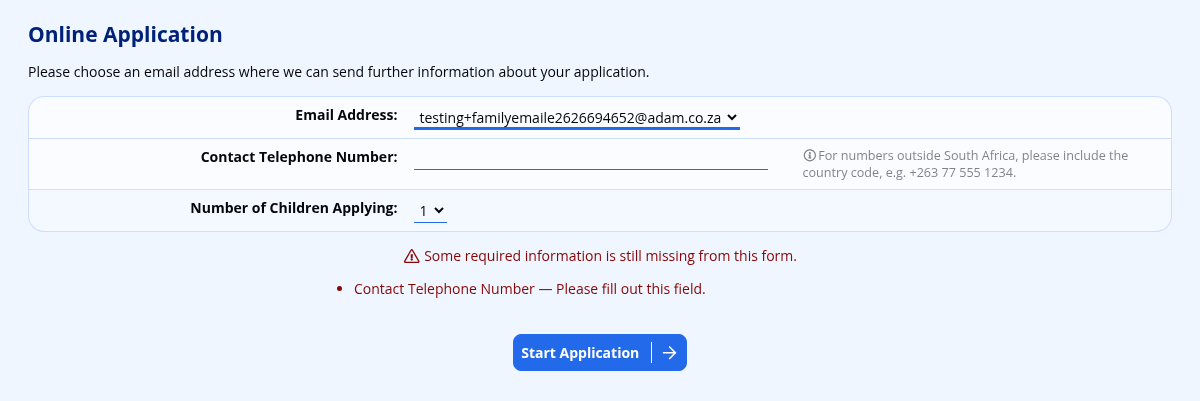
If you make a typing mistake on this screen, ADAM tells you and shows the screen again. A mistake does not use up your link.
Starting from the Parent Portal
If you already log in to the parent portal, you do not need an emailed link to start. If you need help logging in, see Logging on to ADAM: A Guide for Parents.
- Log in to the parent portal.
- Under the New Pupil Application heading, click Submit an online application for a new pupil.
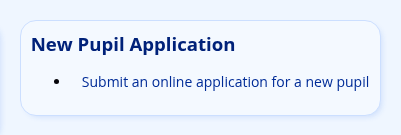
ADAM opens the same screen that parents the school already knows see in Confirming your details. Choose the Email Address where ADAM should send further information, or choose (use an alternate address) and type another address. Fill in your Contact Telephone Number and the Number of Children Applying, then click Start Application. ADAM creates your application at once.
The New Pupil Application heading appears only while your school is accepting online applications. If you cannot see it, contact the school.
Warning
Each time you click Submit an online application for a new pupil and then Start Application, ADAM creates a new, separate application. To return to an application that you have already started, use the link in your email instead. See Coming back to your application later.
Continuing to the Application Form
When you click Start Application, ADAM creates your application and takes you straight to the application form. ADAM also sends you a second email, to the address you chose, with a link to your application form.
Keep this second email. It is the one you need to return to your application later.
Responding to Online Agreements
Your school may ask you to read and respond to one or more agreements before you see the application form, such as terms and conditions of application. If it does, ADAM shows you each agreement in turn.
Read the agreement, then click I agree to the conditions stated above. If the school does not require you to accept an agreement, you will also see I DO NOT agree to the conditions stated above. Once you have responded to every agreement, ADAM takes you to the application form.
If your school has no agreements for applicants, you go straight to the application form.
Completing the Application Form
ADAM shows the application form one page at a time:
- The Parents page, for your own details. ADAM fills in the details you gave on the first form. If the school already knows your family, you skip this page.
- A page for each child.
Each page ends with a Save and continue button, which saves the page and opens the next one.

You can save a page at any time, even if some of it is still empty. ADAM lists anything that is still missing below the form, with the message Some required information is still missing. You can save now and complete it later. You must complete everything marked as required before you can submit the application.
Please note the following:
- On the Parents page, one of the parents must have the same ID number that you gave on the first form. Otherwise the school cannot accept the application.
- If parents are divorced or separated, the Parents page asks you to give the details of the primary parent only, and of a step-parent if they live at the same address. The school will ask for the details of other parents separately.
- Some questions appear only after you have given a particular answer. For example, a question may appear only once you have chosen a grade of entry.
- If you started your application through another service, such as a payment page for an application fee, some answers may already be filled in. You may not be able to change some of them.
The Progress Bar
A progress bar at the top of each screen shows where you are. It shows:
- Parents (only if you complete the Parents page);
- one step for each child. The step shows Child 1, Child 2 and so on until you save the child’s first name, and then shows the name;
- Documents (only if the school asks for supporting documents);
- Review & Submit.
A tick next to a step means that page is complete. A warning sign means that something on it is still needed.
You can click Parents or any child’s step at any time. You can click Documents or Review & Submit once you have reached it. ADAM saves the page you are leaving before it moves you.
Coming Back to Your Application Later
To return to your application, click the button or link in the second email: the one ADAM sent after you clicked Start Application. Do not use the first email. Its link stops working once you have clicked Start Application.
Please remember:
- You must submit the application by the date that ADAM showed you after the first step. After that date, the application expires.
- If your school sends reminder emails, each reminder also contains a link to your application.
- If the link in your email stops working before you have submitted, contact the school. They can send you a new link while your application is still open.
Uploading Supporting Documents
If your school asks for supporting documents, ADAM shows a Supporting Documents screen after you save the last child’s page. If the school does not ask for documents, you go straight to the review screen.
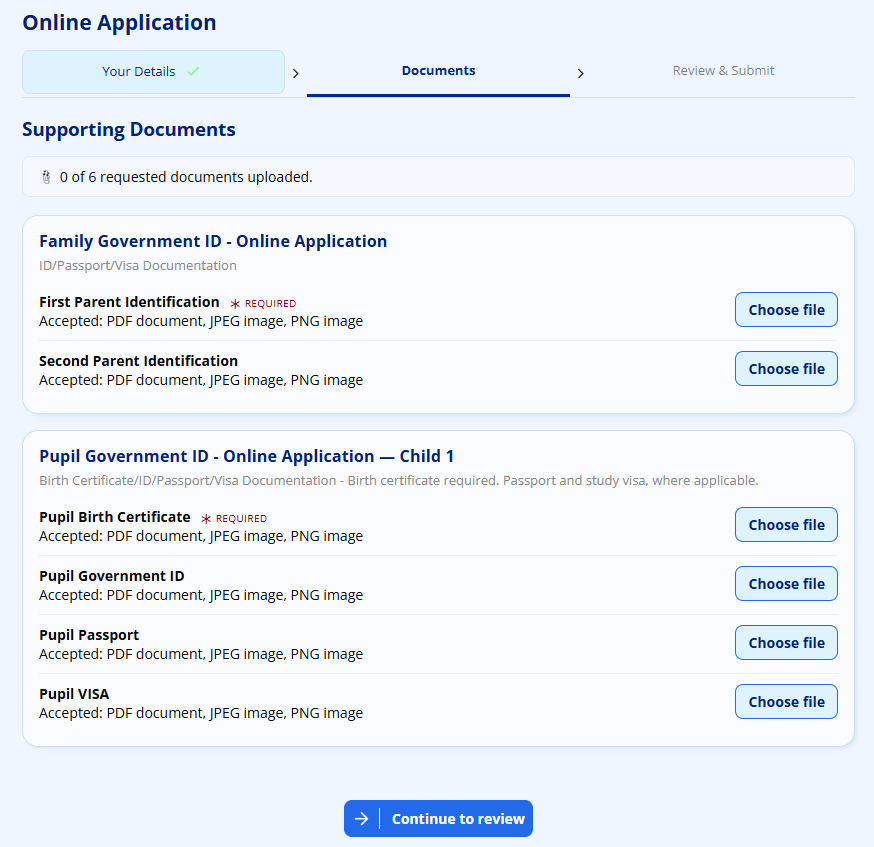
A counter at the top shows how many documents you have uploaded so far, out of every document on the screen, including optional ones.
Each document is shown with its name, a short description, and the kinds of file it accepts (shown as Accepted: …). A document may also carry a badge:
- A Requested badge means that the school would like this document, but will still accept your application without it.
- A red Required badge means that you cannot submit your application until you upload this document.
- A document with no badge is optional.
Documents that apply to each child are repeated for each child and labelled with the child’s first name, or Child 1, Child 2 and so on if you have not yet saved the child’s first name.
To upload a document:
- Click Choose file next to the document.
- Select the file on your computer or phone.
ADAM uploads the file at once and shows a tick next to its name. If you uploaded the wrong file, click remove next to it and choose another.
ADAM rejects a file that is too large for that document, and asks you to choose a smaller one. ADAM also rejects a file of a kind the document does not accept, and lists the kinds it does accept, for example ‘birth-certificate.key’ must be one of: PDF document, JPEG image.
When you have finished, click Continue to review. If any Requested or Required documents are still missing, ADAM first shows a message that lists them:
- Some required documents are missing means that you will not be able to submit your application without them.
- Some requested documents are missing is a reminder only.
Click Continue anyway to move on to the review screen, or Go back to stay on the documents screen.
Note
Uploading a document here does not mean that the school has approved it. The school files your documents with your child’s records only if it accepts your application.
Reviewing and Submitting Your Application
The Review & Submit screen shows the proposed date of entry and grade of entry for each child. If the school does not yet know your family, it also shows each parent’s cell number and email address under Parent Contact Information. Please check these carefully: the school will use them to contact you.
Below the details is a message from the school, followed by the Confirm and Submit Application button. If you have not uploaded some Requested documents, a warning above the button lists them. This is a reminder only.

If anything required is still missing, ADAM shows a Still needed list instead of the button. See Help! I can’t submit my application!
When you are satisfied that everything is correct, click Confirm and Submit Application. ADAM shows Thank you! and a message from the school, with a tick against every step in the progress bar.

Warning
Once you have submitted the application, you cannot change it. If you notice a mistake afterwards, contact the school.
What Happens After You Submit
- ADAM tells the school that your application has arrived.
- If your school has chosen to, ADAM emails you to confirm that it has received your application. You may receive one email for each child.
- The school checks the application. Accepting the application means that the school adds your child to its list of applicants. It does not mean that the school has offered your child a place. The school will contact you about the next steps.
- The school may later ask you to upload further documents through the parent portal. See Uploading Documents: A Guide for Parents and Pupils.
If you click the link in your email after you have submitted, ADAM shows the message Sorry - this application has already been submitted. No more changes are possible. For news about your application, contact the school directly.
Help! My Link Has Expired or Has Already Been Used!
The link in the first email (the one that starts the application) works for 24 hours and stops working once you click Start Application. If you open it after that, ADAM shows one of these messages:
- an Invalid Link page that says The link you followed was either limited by time or usage and is no longer valid.
- This link has expired or has already been used., with a Start a new application button.
ADAM shows the same message whatever the reason. What to do depends on what happened:
- If you never clicked Start Application, your application was not created. Go back to the school’s application form, or click Start a new application, and fill in the form again. ADAM will email you a new link.
- If you already clicked Start Application, your application exists. Use the link in the second email to return to it. Starting again creates a new, separate application.
The link in the second email (the one that returns you to your application form) also stops working after a time. If it shows the Invalid Link page and you have not yet submitted, contact the school and ask them to send you a new link.
If ADAM shows Sorry - this application has already been submitted. No more changes are possible. but you have not submitted, the application may have expired. Contact the school.
Help! The Email Has Not Arrived!
Please try the following:
- Wait a few minutes, then check your inbox again.
- Check your junk or spam folder.
- If you are already a parent at the school, check the inbox of the email address that the school holds for you. ADAM does not send the link to the address you typed.
- Check that you typed your email address correctly. If you did not, fill in the form again with the correct address.
- If you have filled in the form three or more times, ADAM may not send another email until 24 hours have passed.
If the email still has not arrived, contact the school. The school can check the email address it holds for you. If you already use the parent portal, you can also start from the parent portal, which does not need the first email.
Kindly note that the developers of ADAM cannot assist with the resolution of this issue.
Help! I Can’t Submit My Application!
If something required is still missing, the Review & Submit screen shows a Still needed list, with the message You cannot submit this application until the following information has been provided. The Confirm and Submit Application button does not appear until the list is empty.
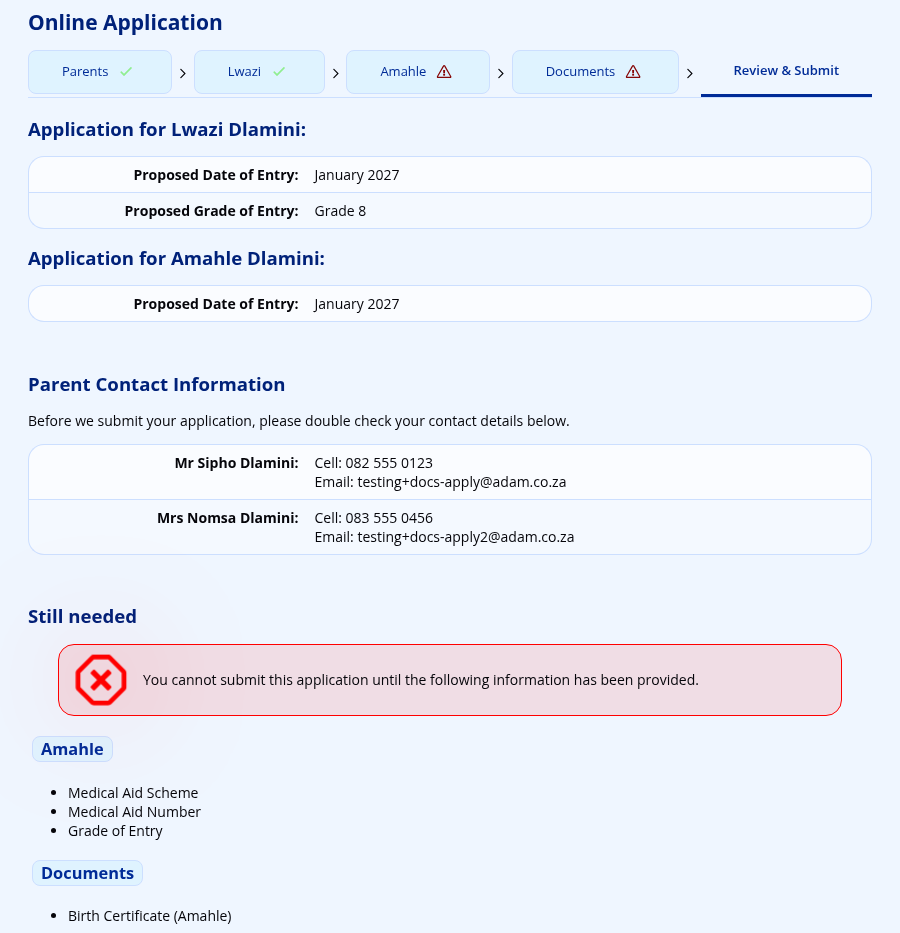
The list is grouped by page: Parents, each child, and Documents. Click a group’s heading to go straight back to that page. Complete the missing items, save the page, and return to Review & Submit.
The list can include:
- required questions that have no answer yet;
- a child’s Date of Entry or Grade of Entry;
- any document with a red Required badge;
- the message The ID number used to start this application must belong to one of the parents. This means that neither parent on the Parents page has the ID number you gave on the first form. Correct the ID number on the Parents page. If the ID number you gave on the first form was wrong, start a new application.
Documents with a Requested badge never stop you from submitting.
If you cannot provide something that the form requires, contact the school.